Prepare your account
Marketplace results have separate Nodes (workspace + SSH) and Clusters (Kubernetes namespace) tabs. Search, GPU-vendor filters, advanced filters, and sorting apply to the whole inventory and return both tabs to page one. Switching tabs keeps your criteria and each tab’s page. Use Next and Previous to browse the selected tab. An empty page means no matching listings; a failed load offers Retry. Pages refresh every 30 seconds and after live updates. A visible listing can show exhausted or temporarily unavailable capacity; only available listings enable Rent, and starting a rental checks availability again.
- 01
Sign in and accept the current Terms
Use the Compute3-branded Console authentication flow. Enter your approved account email and open the secure, one-time sign-in link sent to that address; Compute3 does not ask for an account password. Links expire quickly and should never be forwarded or pasted into support tickets. The marketplace can be browsed publicly, but launching and managing rentals requires an account. After sign-in, the Console displays a blocking agreement prompt if your account has not accepted the current Terms of Service and Acceptable Use Policy. A newly required Terms version prompts you again before protected Console or API use. - 02
Add an SSH public key
Workspace rentals require at least one valid OpenSSH public key. Add it under Account → SSH keys. Keep the corresponding private key only on your devices. - 03
Top up Rental Balance
Add at least €10 through Stripe. A successful €10 payment adds exactly €10 to Rental Balance; ComputeCubed covers processing costs. - 04
Install WireGuard
Workspace and Kubernetes connections use a rental-specific private tunnel. Install a WireGuard client before launch so you can connect as soon as the allocation is ready.
For a multi-GPU host, review the model and VRAM per device, the available count, and the selected count. Full-host rentals include all devices. A GPU slice can include zero, one or multiple GPUs when the listing permits it. Selecting one of two cards leaves the other outside your rental. Unavailable devices are labelled; a conflicting selection requires a fresh quote and review.
The final server quote determines the selected devices and hourly price. Review its GPU inventory before confirming. Individual measurements apply only to those devices. A concurrent host result applies only to the exact measured participant set; it cannot predict a subset's throughput. Whole-host measurements shown with partially rented capacity are context, not a claim about remaining GPUs.
Read the marketplace
Choose Nodes for workspace + SSH rentals or Clusters for Kubernetes namespaces. Search by node, cluster, or GPU model and select a GPU vendor. An available card includes the live evidence reported for the advertised capacity.
Open Advanced filters to enter minimum CPU cores, RAM, disk space, GPU count, or VRAM per GPU. Hardware thresholds compare published listing limits; they do not reserve resources or guarantee that the same capacity remains free. GPU count refers to the devices advertised for rental. VRAM requires at least one inventory device with the requested memory. Cluster resources are listing-wide; a limited namespace must still fit on one eligible node.
Performance filters cover per-device generation and prompt-processing throughput, host RAM bandwidth, and download/upload speed. All selected thresholds must be met. For clusters, one ready node must meet all performance and VRAM criteria; generation and prompt thresholds must be met by the same measured GPU. Missing measurements do not match. GPU measurements describe the displayed benchmark workload and cannot predict another model or a smaller rental’s performance.
Set minimum and maximum published starting prices in euros per hour, including marketplace markup. This is the provider’s configured starting allocation before live capacity changes, shown separately on each card. It does not estimate the cost of your selected hardware thresholds; the current price range and final quote may differ.
Select Sort by to order listings by newest, published starting price (low or high first), most CPU cores, RAM, disk, GPUs, or fastest generation benchmark. Generation sorting compares the best matching device on a node, or the best matching ready node in a cluster; missing results appear last. Live listing or benchmark changes can move results between pages. Choose Apply filters to use advanced criteria or Clear all filters to reset search, vendor, sorting, and advanced criteria.
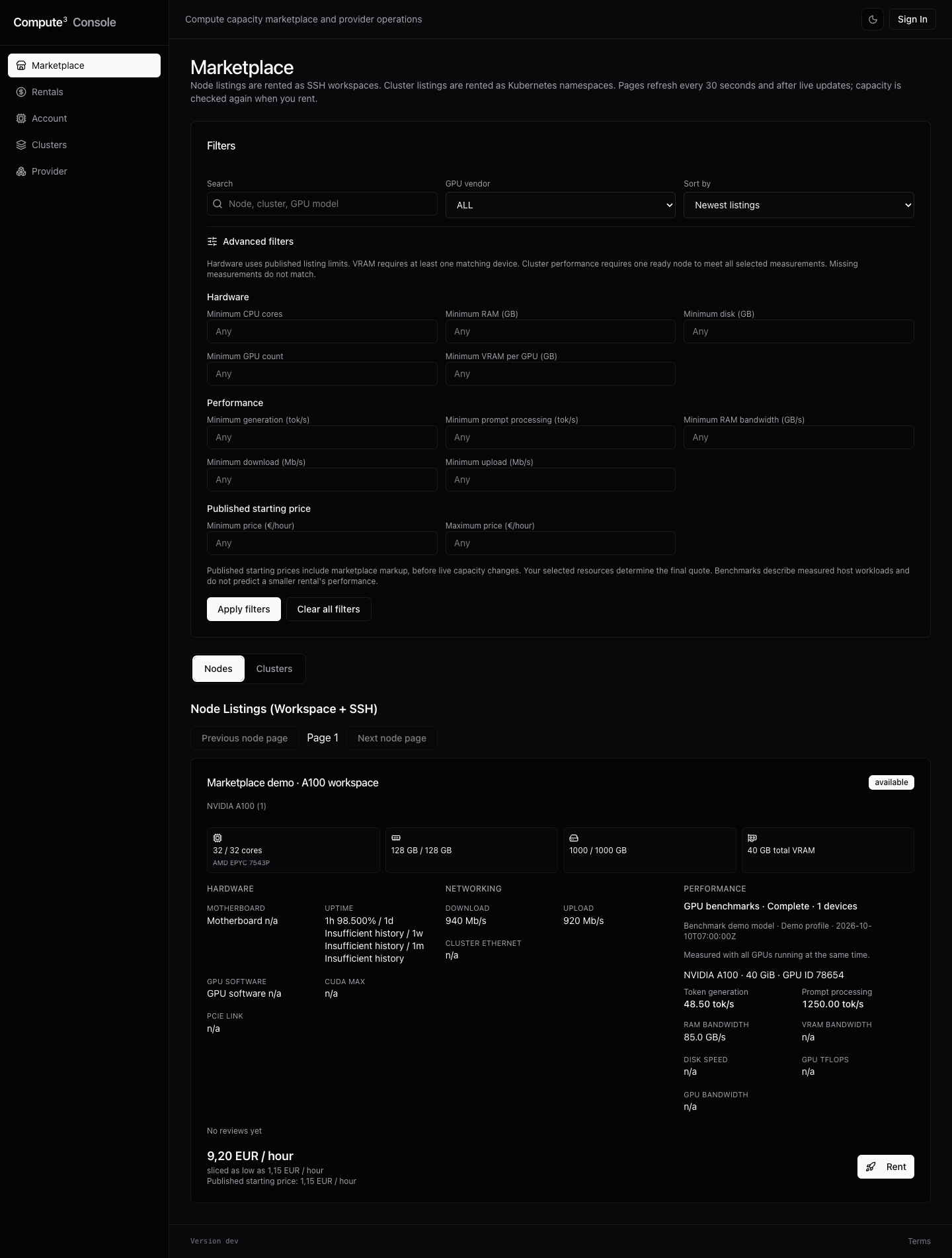
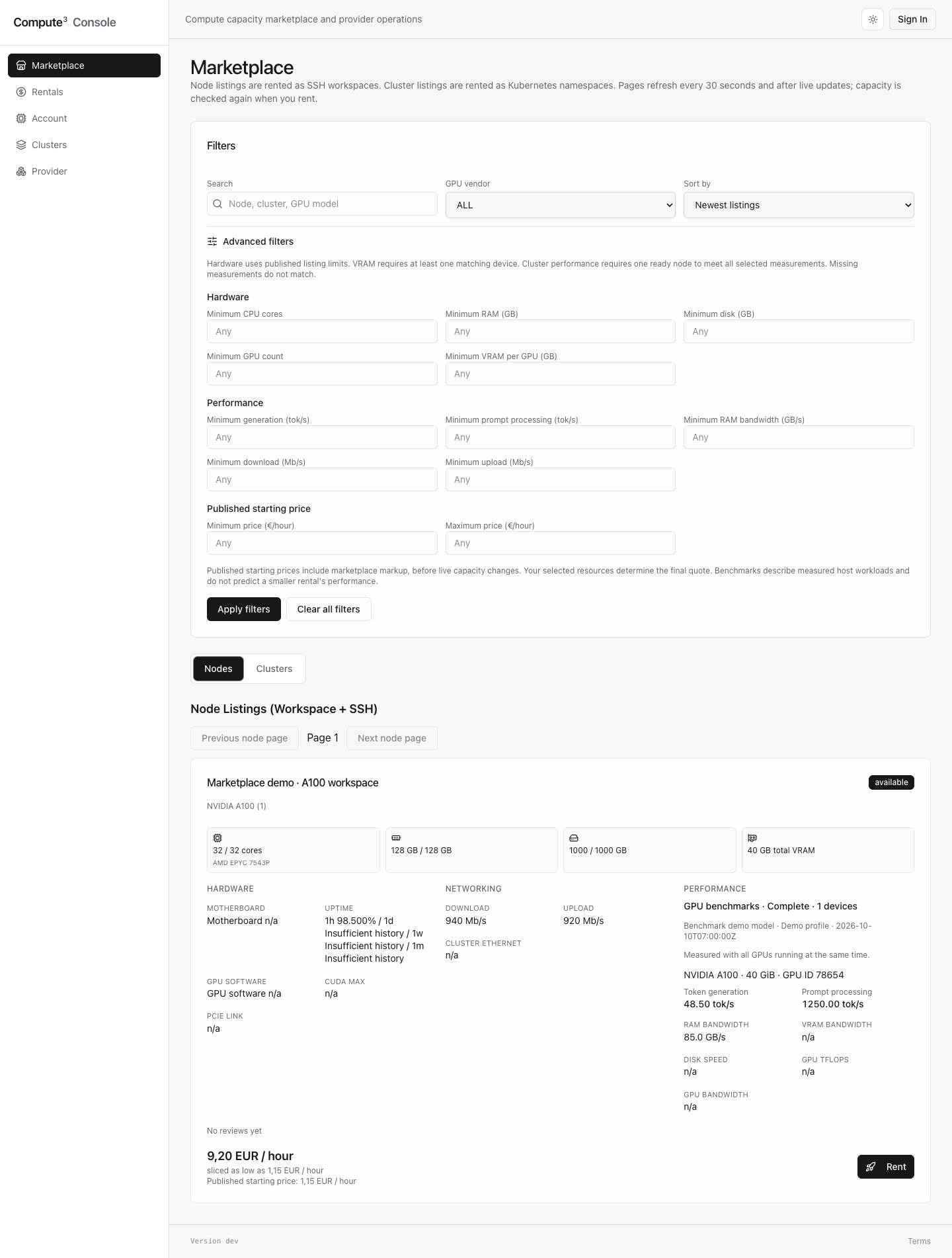
| Evidence | What to check |
|---|---|
| Hardware | GPU model/count/VRAM, CPU model and cores, RAM, disk, motherboard, PCIe link |
| Software | Driver, CUDA or ROCm version, and compatibility with the selected workspace image |
| Reliability | 1h/1d/1w/1m uptime; a strong long window with weak 1h can indicate a recent incident |
| Network and disk | Download/upload, cluster networking, read/write throughput, and your data movement needs |
| AI performance | Prompt, generation, concurrency, time-to-first-token, GPU compute, and memory bandwidth where available |
| Trust | Direct and aggregate reviews plus the provider’s replies |
Choose the right rental mode
Choose a full-node workspace for exclusive access to the advertised node capacity, predictable local capacity, or workloads that should not share. Choose a sliced workspace for an interactive SSH environment with only the CPU, RAM, disk, and GPUs you need. Choose a limited Kubernetes namespace for familiar kubectl workflows inside quotas. Choose an unlimited namespace only when the listing, isolation need, and cost justify the broader reservation.
The Console shows only modes enabled by the provider and supported by the listing scope. Some sliced offers require a GPU. Limited namespaces require a pinned node, and GPU requests must fit that node.
Configure and confirm
Select resource quantities inside the advertised ranges. On GPU nodes, choose exact devices or model counts as offered. Workspace launches also require a compatible image; the catalog filters by accelerator family and CPU architecture. Wait for the current quote, then review its hourly price and currency, reservation, exact resources, contract end date, chosen mode, and whether the allocation is exclusive or shared. The controls use the quoted limits. Choosing a slice never automatically switches you to an unlimited or full-node rental.
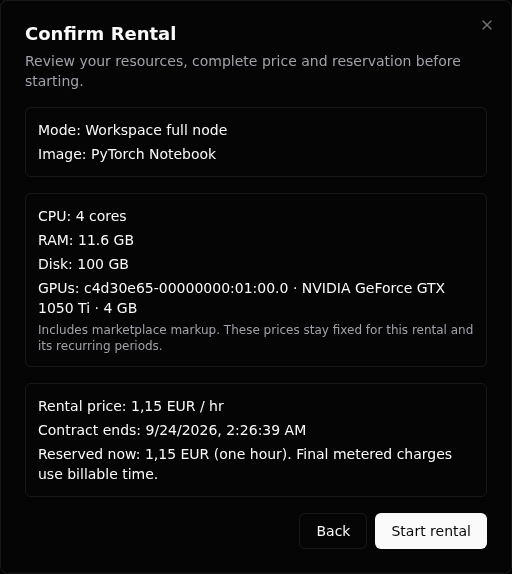
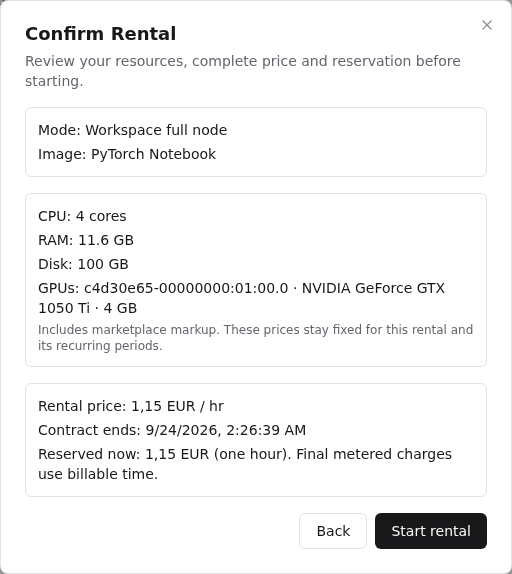
The quote is a preview, not a capacity reservation. Review and Start stay unavailable while a quote is loading or invalid. Starting rechecks the current listing version, capacity, image compatibility, account requirements, and Rental Balance. If another renter takes capacity or the provider changes terms, review a fresh quote before trying again.
The displayed renter price includes the listing’s marketplace markup. Review the server quote before accepting; a changed or expired quote requires a fresh review. Accepted prices stay fixed for the rental and its recurring periods.
Some listings show a minimum rent time and rented-resource uptime threshold. Review the full amount due now, whether the period renews, and what happens afterward. Rented-resource uptime for this refund is measured only after your rental becomes usable; the node's historical marketplace uptime is separate evidence. A period below the displayed threshold is refunded in full to Rental Balance. A period at or above it is charged in full, including when you choose to end early.
From launch to ready
Starting means capacity and the contract are recorded while access is prepared. For a workspace, its nested status moves through creating to ready. For a namespace, Kubernetes access becomes available when the rental is active. Connection details remain hidden or disabled until ready.
If launch fails, the rental records a specific error and its reservation is not meant to become an unexplained charge. Review the Rental Balance transactions and contact support with the rental ID when state and ledger disagree.
Read rental performance
Current costs come from the server and refresh about every 30 seconds while the rental is starting or active. A not-yet-usable rental shows no current cost; completed rentals use the recorded settlement amount.
The rental detail page shows recent performance telemetry for the workload boundary assigned to you. Depending on the rental mode and hardware, this includes CPU, memory, network throughput, and the utilization, memory, temperature, and power of assigned GPUs. Choose a time range from one hour to 30 days.
Rental charts are restricted to the rental’s namespace, node, and selected devices where applicable. They do not provide access to another renter’s workload or the provider’s central monitoring tools. Missing samples appear as missing data rather than zero; use the connection state and event log alongside the charts when diagnosing an interruption.
Hover over any performance chart to show values and the local timestamp across all charts at once. You can also focus a chart and use the arrow keys, Home, or End to move through samples. Missing samples show a dash. Each chart always shows the latest values and their timestamp; move away or press Escape to return to them. Click a series name below a chart to hide or show that series. Series keep the same color and order in every chart.
End a rental
Save work outside ephemeral capacity before ending. On a starting rental, the action is labeled Cancel rental; on an active one it is End rental. Ending records the request time, revokes rental access, finalizes billable seconds or the current commitment, releases the reservation, applies any final charge and fee split, and makes compatible capacity available again. A minimum-rent period that meets its uptime threshold remains fully charged when ended early; one below the threshold is fully credited back to Rental Balance, never to a bank account.
Past rentals preserve hardware snapshots, allocation, duration, final money fields, and review eligibility. Deleted records can be shown separately where the Console offers a “Show deleted” control.
A rental request has an operation reference. Keep this reference if the connection is interrupted and check the rental details before creating another rental. Queued requests are retried automatically within a bounded retry policy; persistent failures need support review using that reference; ending a rental also schedules cleanup. Billing settlement and cleanup completion are shown separately. A failed start is compensated; create a new rental after that rental has ended. Repeating End does not charge or refund twice.